

Service Accounts
Service Accounts
A service account is a non-human identity that belongs to an organization. Use service accounts for machine-to-machine access — CI/CD pipelines, infrastructure-as-code such as Terraform and Pulumi, and scripts driven by the esc CLI — so that automation authenticates with its own credentials instead of a person's account.
Compared with tokens tied to an individual user, service accounts:
- keep automation working when people join or leave the organization;
- have their own scoped permissions, granted per target; and
- can have their secrets rotated or revoked independently, without affecting any user.
Manage service accounts from Access control → Service accounts.
Create a service account
Open the Access control menu for your organization and select Service accounts.
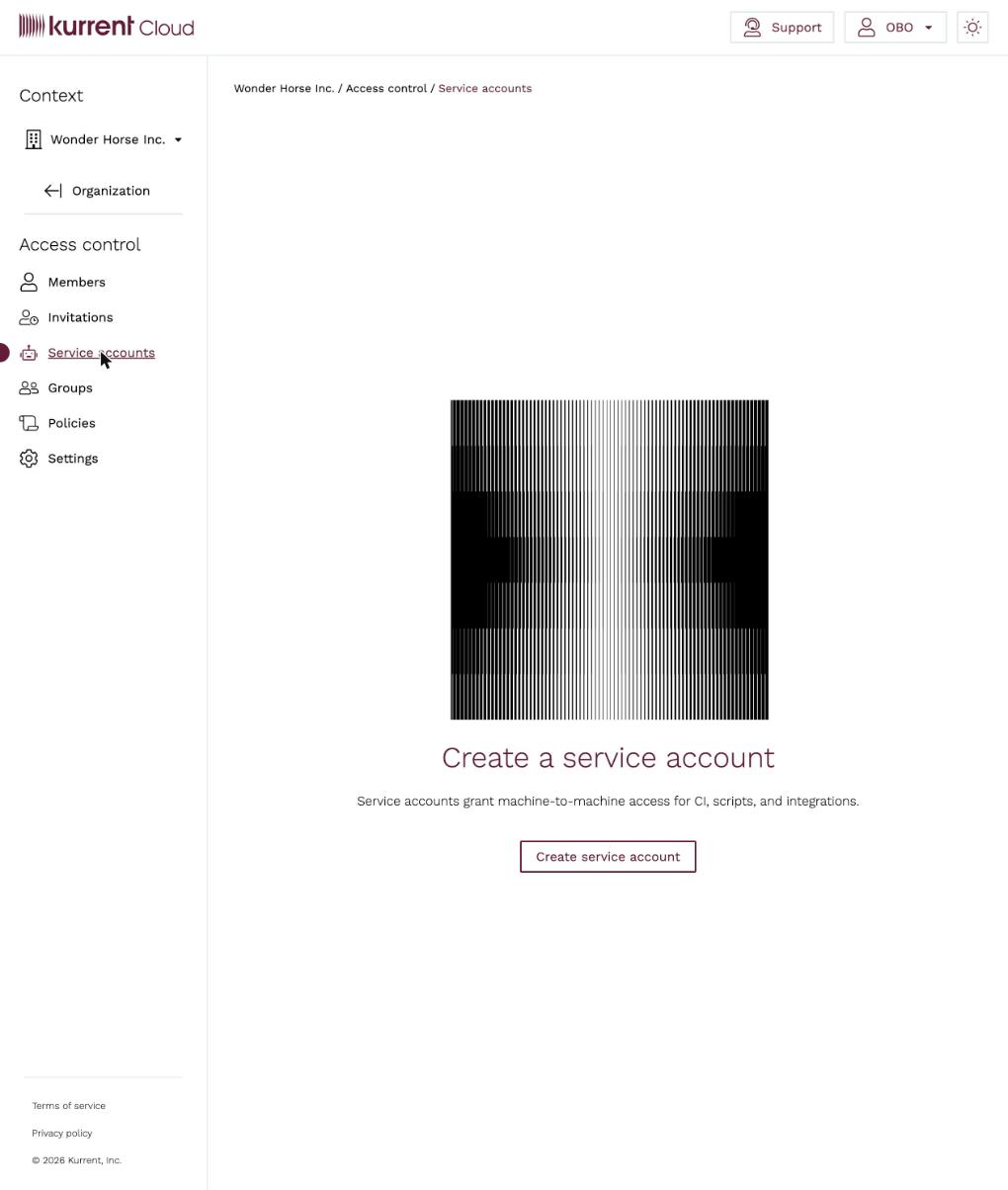
Service accounts empty state Click Create service account.
Give it a descriptive Name that identifies where it is used, for example
ci-deployorterraform-production.Under Scopes, select the access the service account should have (see Scopes below). You can change this later.
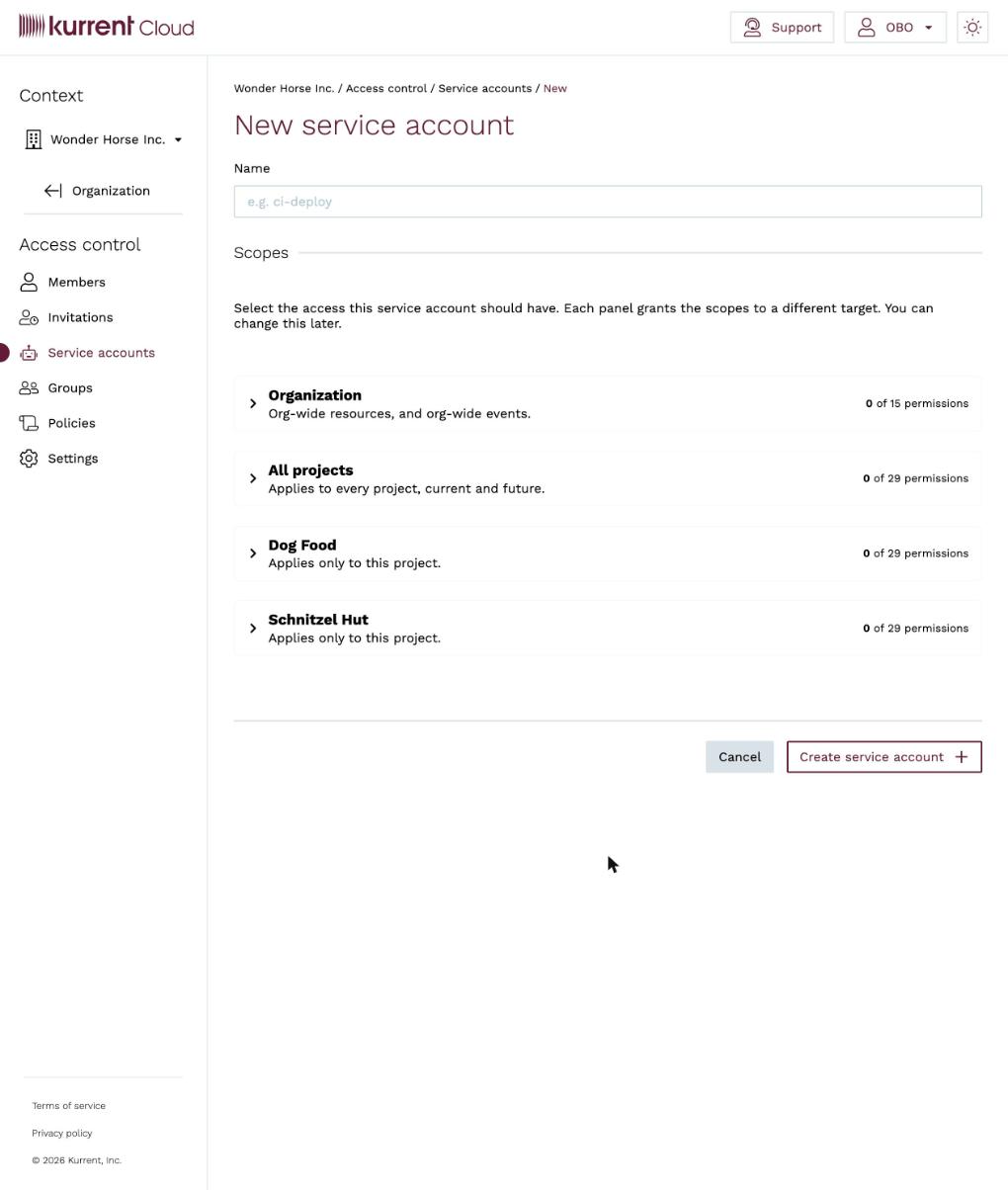
New service account — name and scope panels Click Create service account.
Scopes
A service account's permissions are granted as scopes, not through group membership. Scopes are organized into panels, one per target:
- Organization — org-wide resources and org-wide events.
- All projects — applies to every project, current and future.
- One panel per project — applies only to that project.
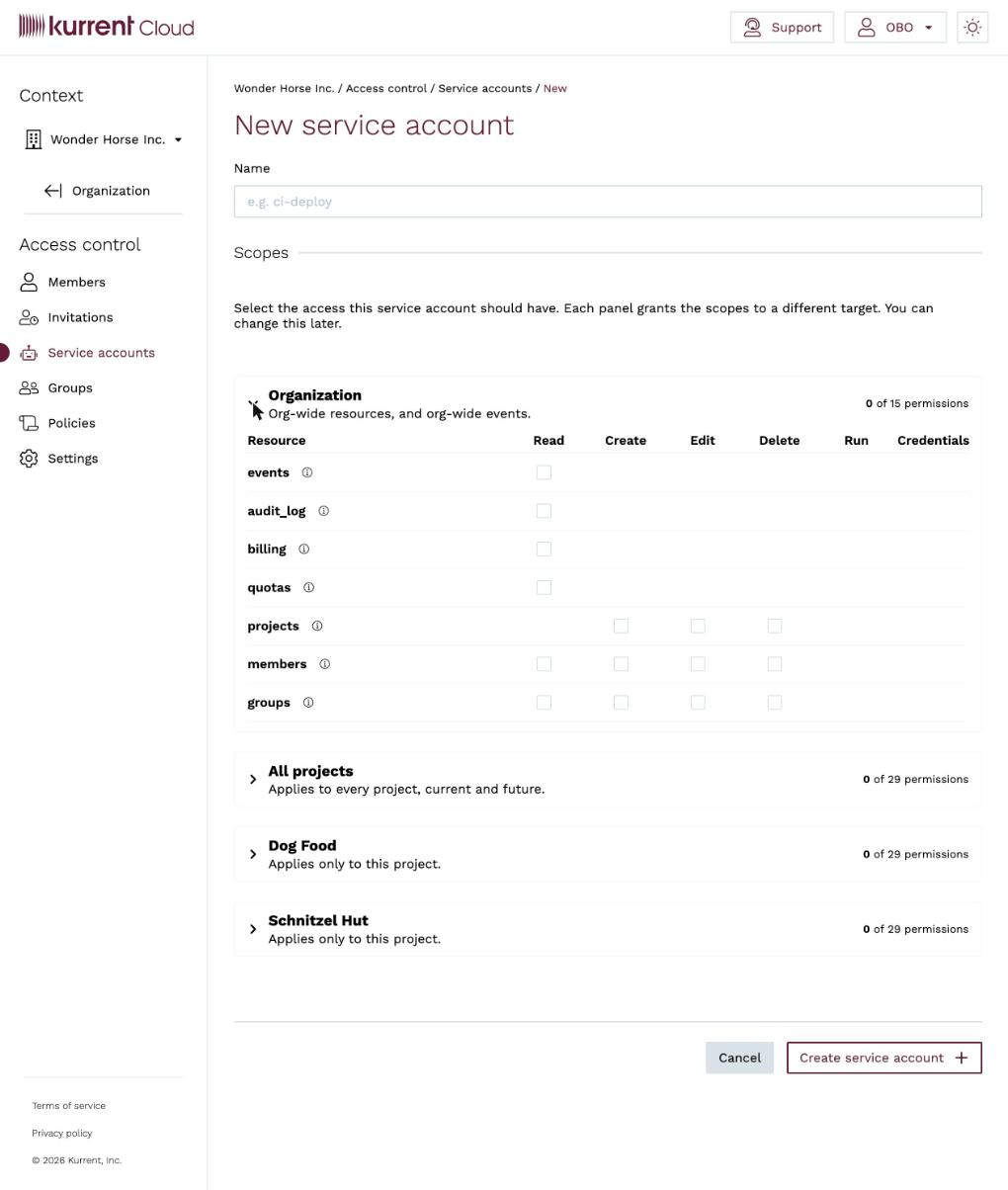
Expand a panel to grant permissions as a matrix of resources (such as events, audit_log, billing, quotas, projects, members, and groups) against actions (Read, Create, Edit, Delete, Run, and Credentials). A checkbox appears only for the actions that apply to a given resource.
Tips
Follow least privilege — grant only the scopes the automation needs. Prefer a project panel over All projects, and grant Read unless the automation must create or change resources.
Authentication
After creation, the service account opens on its Authentication tab, which holds its credentials.
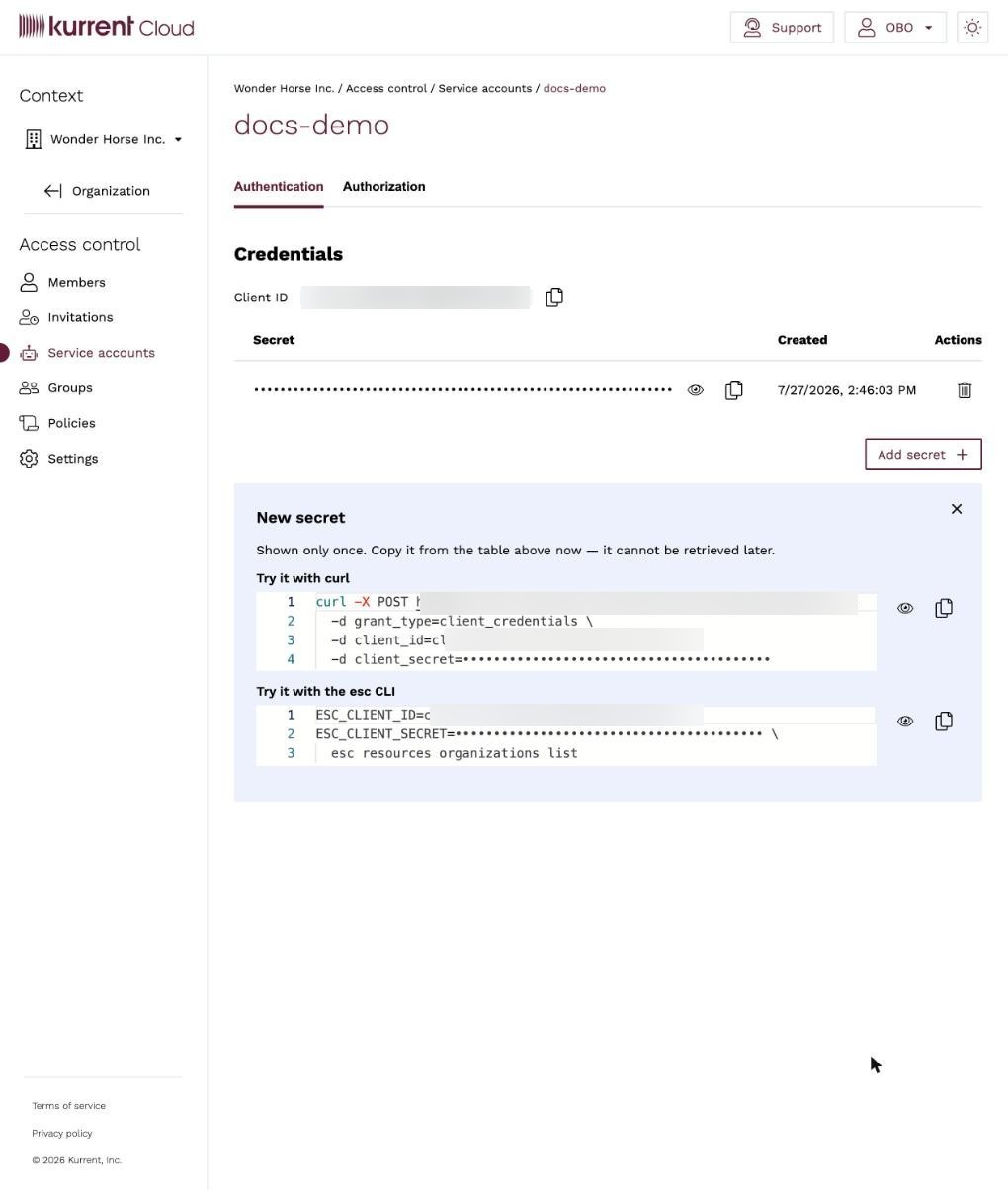
- Client ID — a stable, non-secret identifier for the service account.
- Secret — created alongside the client ID. A service account can hold more than one secret; use Add secret to create another.
Warning
A secret's value is shown only once, when it is created. Copy it and store it in a secrets manager immediately — it cannot be retrieved later. If you lose it, add a new secret and delete the old one.
The Authentication tab also shows ready-to-run snippets for the client ID and new secret, using the OAuth 2.0 client credentials grant for the API and environment variables for the esc CLI.
Authenticate the esc CLI
The esc CLI reads service account credentials from the ESC_CLIENT_ID and ESC_CLIENT_SECRET environment variables. Export them, then run esc commands as usual — they execute with the service account's scopes:
export ESC_CLIENT_ID=<client-id>
export ESC_CLIENT_SECRET=<client-secret>

esc resources organizations list
Warning
Provide service account credentials through the ESC_CLIENT_ID and ESC_CLIENT_SECRET environment variables. Do not pass them as global command-line flags — esc reserves credential handling for these environment variables.
In CI/CD, store the client ID and secret as masked/secret variables in your pipeline and export them into the job environment before invoking esc.
Authenticate the API directly
For direct API access, exchange the client ID and secret for an access token using the OAuth 2.0 client credentials grant, then call the API with the returned bearer token. The exact token endpoint is shown in the curl snippet on the Authentication tab.
Authorization
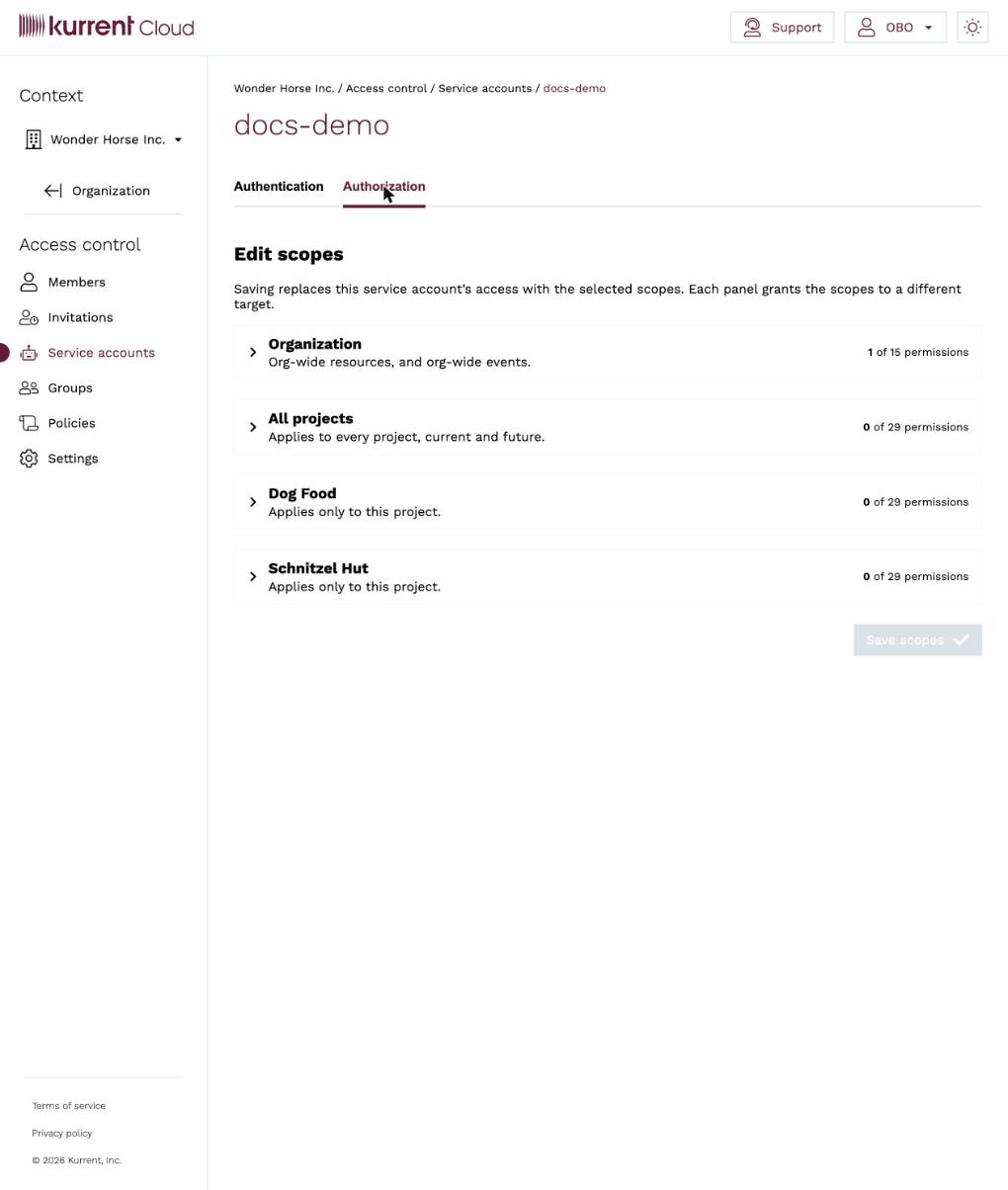
The Authorization tab lets you change a service account's scopes after creation. It shows the same per-target panels used at creation; adjust the selected permissions and click Save scopes.
Warning
Saving on the Authorization tab replaces the service account's access with the scopes currently selected across all panels. Review every panel before saving, not just the one you changed.
Rotate and revoke
- Rotate a secret — on the Authentication tab, click Add secret to create a new one, update your automation with the new value, then delete the old secret. Because a service account can hold multiple secrets at once, you can roll over without downtime. Rotate on a regular schedule and whenever a secret may have been exposed.
- Revoke access — delete a secret to invalidate it, or delete the service account to remove it entirely. Any automation using a deleted credential stops working immediately.
Tips
Give each automation its own service account. Separate credentials make it easy to rotate or revoke one integration without disrupting the others, and make audit logs clearer about which automation performed an action.
Use with Terraform and Pulumi
Service accounts are the recommended identity for infrastructure automation, so that plans and applies run under an identity that is not tied to a single person. The Terraform provider supports service account credentials from version 3.1.0: set the client_id and client_secret provider options (or the ESC_CLIENT_ID and ESC_CLIENT_SECRET environment variables) to the values from the service account's Authentication tab.
The Pulumi provider does not yet accept service account credentials and is still configured with a token. See the Automations section for each provider's setup.